Download
Pick the computer you have.
Windows Windows 10 and 11Version 0.8.18
Mac macOS 13 and newerVersion 0.8.18
Which Mac do I have?
Open the Apple menu in the top corner and choose About This Mac. If it says Apple M1, M2, M3 or M4, take Apple M-series. If it says Intel, take Intel.
How to install
The launcher is new, so Windows and Mac do not know it yet and will ask whether you trust it. That is fine, it is meant to happen — here is what to press.
Windows
- Open the file you downloaded.
- A blue window says “Windows protected your PC”. Press More info.
- Press Run anyway, then follow the installer.
Mac
- Double-click the file you downloaded. A window opens — drag Kodland Launcher onto Applications and wait for the copy to finish. Do not open it from this window.
- Open Terminal: press Cmd + Space and type “Terminal”.
- Paste this one line and press Return:
xattr -dr com.apple.quarantine "/Applications/Kodland Launcher.app"Nothing will answer — that is normal, it means it worked.If it answers “No such file”, the app is not in Applications yet. Go back to step 1 — downloading the file again does not help. - Open Kodland Launcher from Applications with a double-click. After this it opens like any other app.
Not working? Write to technical support or ask your teacher — we will help and tell you what to press, so you are ready for the lesson.
Guide
A quick walk through the launcher: getting in, getting the game, what you can make, and how it keeps itself new.
The pictures show the launcher in English. Yours speaks your language, and every button is in the same place.
Your first time
Four steps from opening the launcher to standing in a world. Only the third one takes a while.
- Press Sign in. There is no password to type: a page opens in your browser, you press one button there, and the launcher already knows it is you.
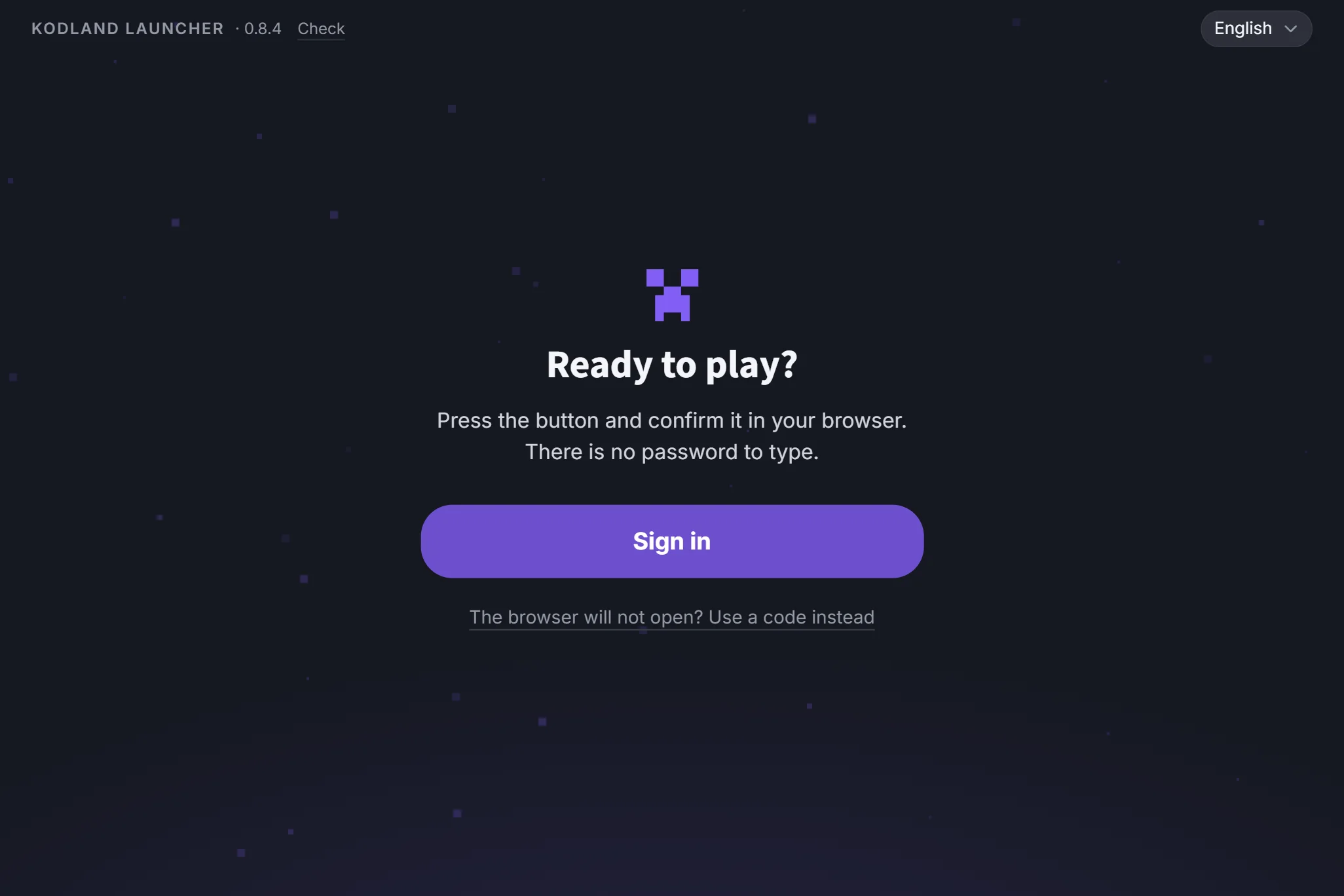
- Browser did not open? Under the button there is a link that gives you a short code instead. You can type it on any device, even a phone, and it works for five minutes.
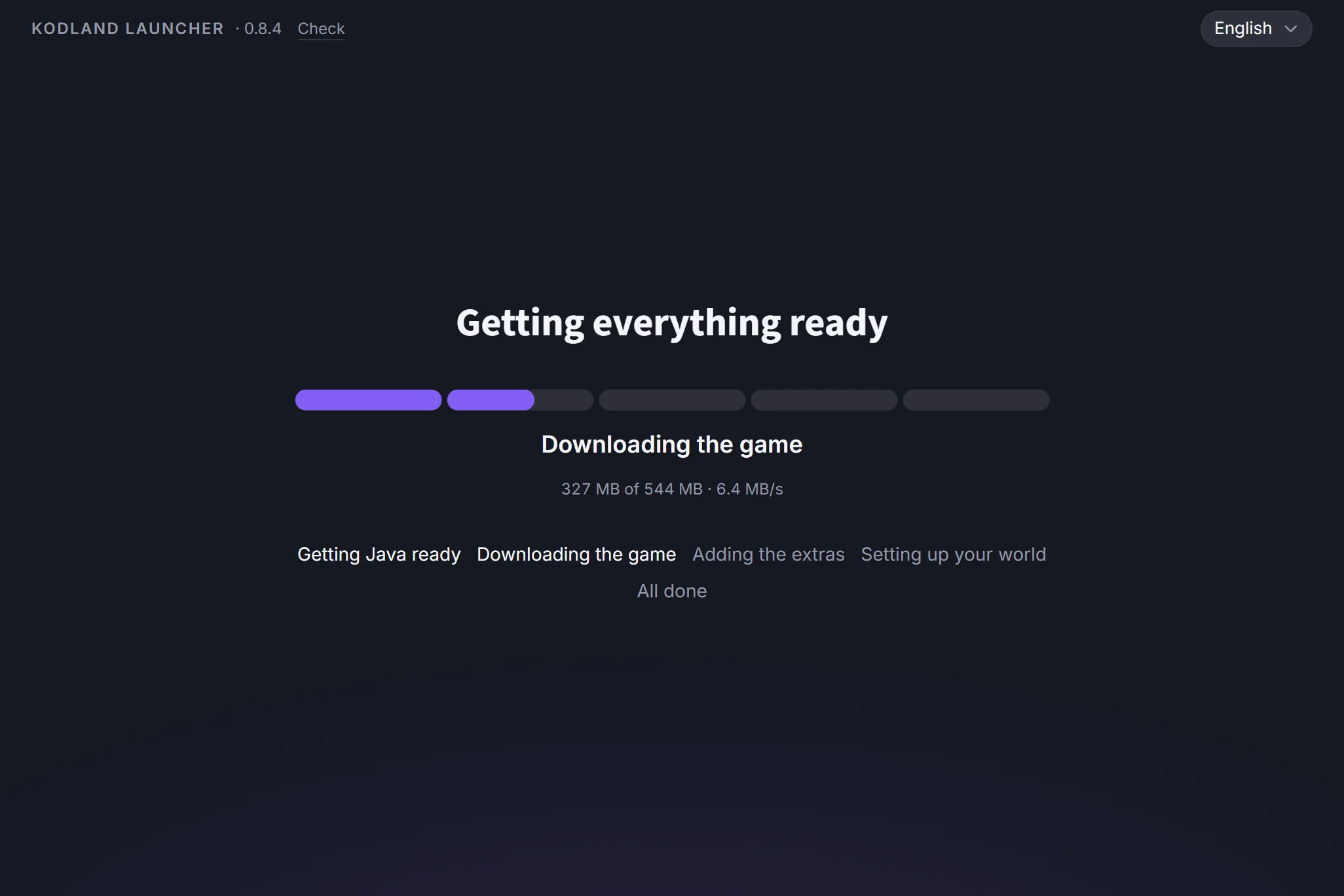
- Press Download the game. It comes in five steps: getting Java ready, downloading the game, adding the extras, setting up your world, all done. About 550 MB comes down, and you need about 1.8 GB of free space. It takes a while, so leave it running and go and do something else.
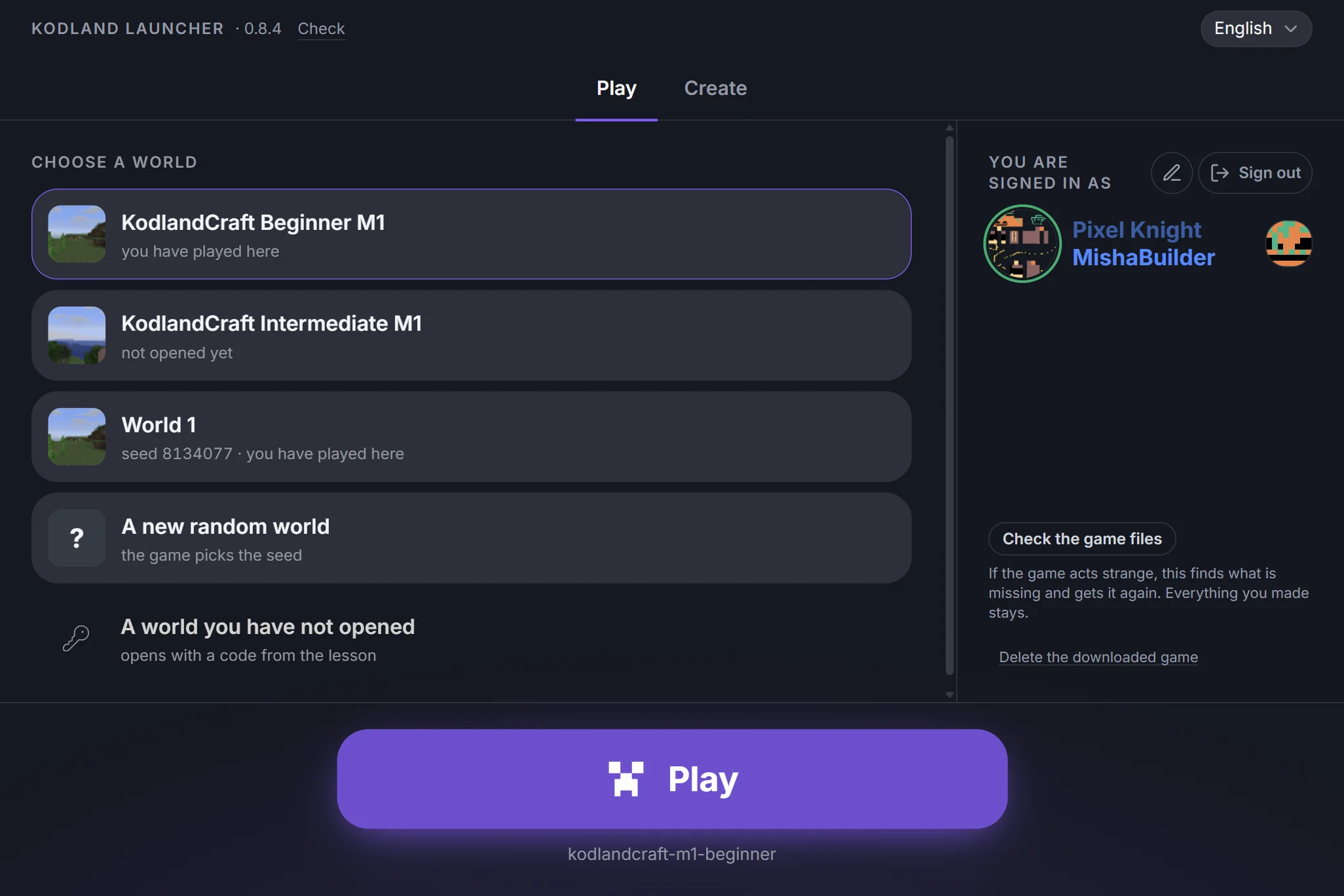
- When it says All done, press Play. You go straight into a world, with no main menu. The first time can take up to a minute, and the game window opens on its own.
Skins
A skin is how your character looks. Take one somebody else made, or draw your own.
- Open Create, then Skins. Turn on Community to see everything other people have published. Press Download on a card you like, then press Wear.
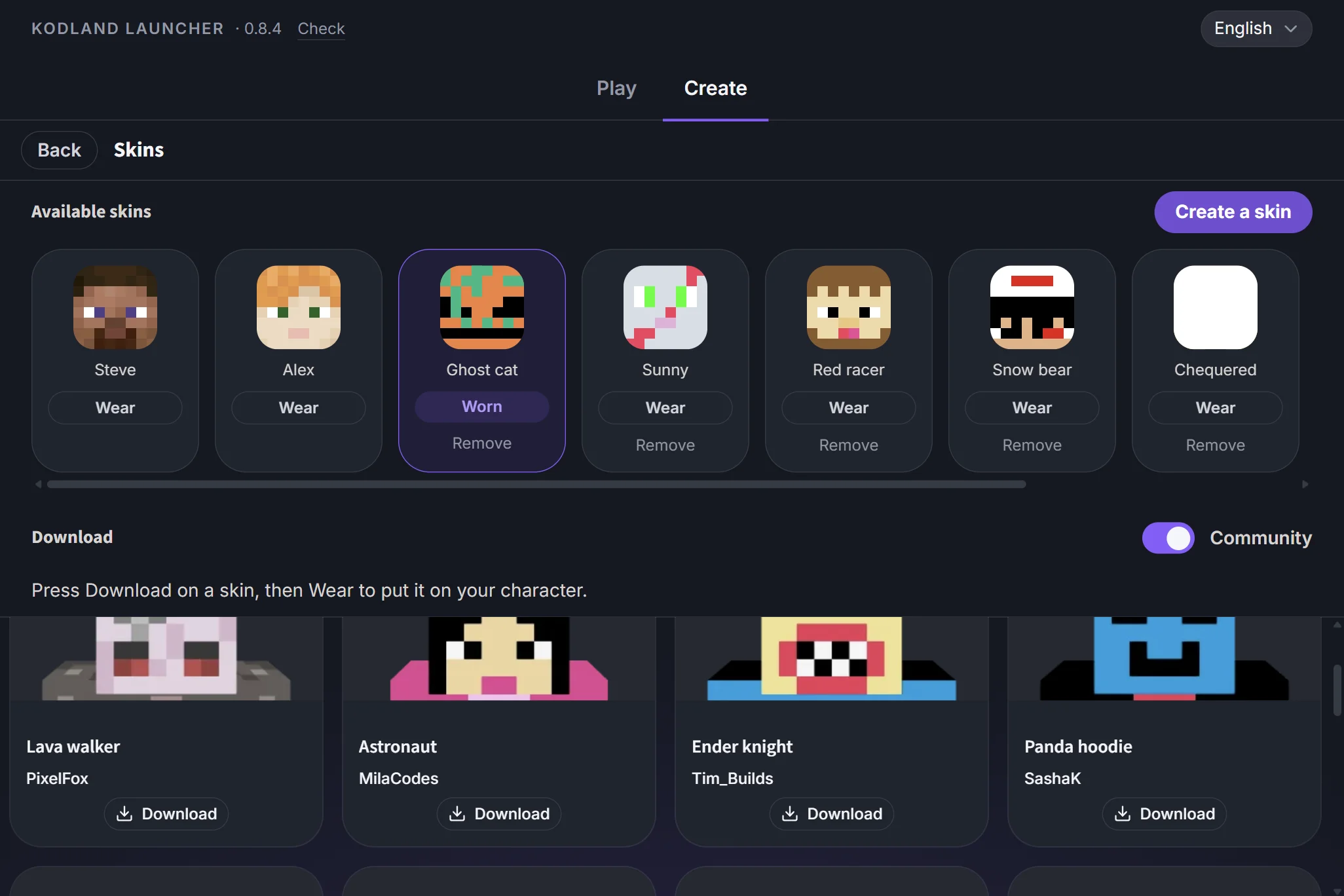
- Press Create a skin to draw one yourself. Skin Studio gives you a pen, a fill and an eraser, and a character that turns while you paint — you can even see the back of your own head.
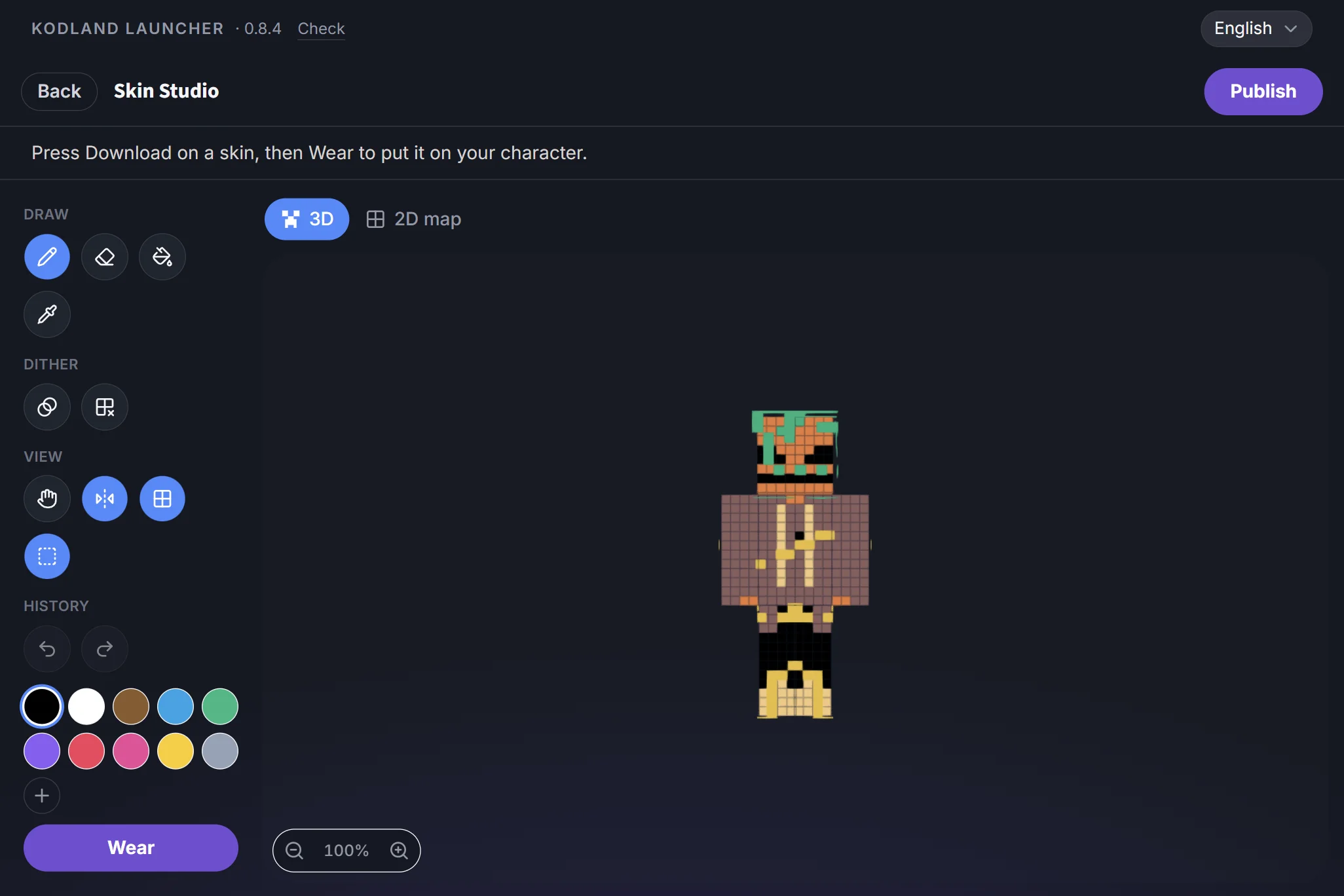
- Happy with it? Press Publish. A page opens in your browser: give your skin a name there, press Publish, and come back. Now everybody can see it.
Updates
The launcher keeps itself new. Now you can see it happen, and hurry it along if you want.
- At the top, beside the version number, there is Check. Press it to look right now.

- If there is a newer launcher, it starts coming down by itself. A small bar appears at the top, so you can see how much is left.

- When the bar is full, an Install button appears. Press it and the launcher closes and opens again as the new one. If you are playing, it waits: it never closes your game.

If you press nothing
- The launcher still looks by itself, a few times a day.
- It brings the new one down in the background and puts it in when you close the launcher.
- On some computers the launcher is not allowed to replace itself. Then it shows a Get the new one button instead of the bar, and it brings you back here.
Update never arrived? Nothing is broken. Take the launcher from the top of this page and install it over the old one. Your worlds and your skins all stay exactly where they are.